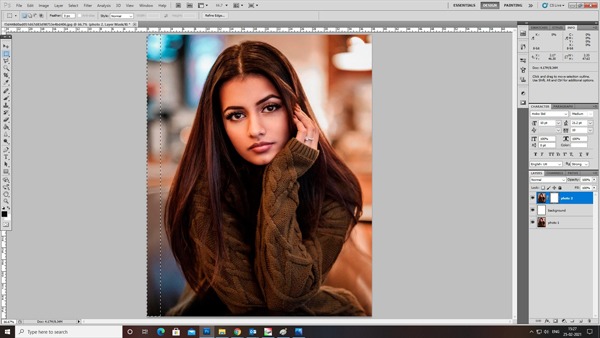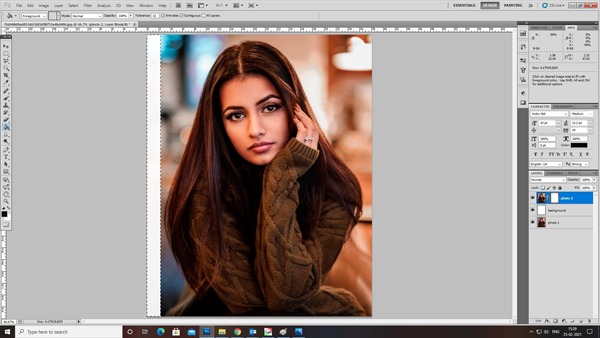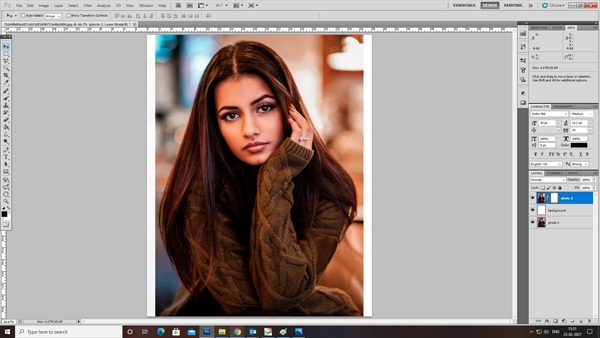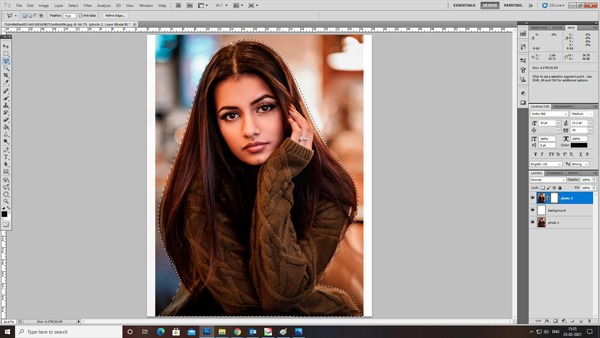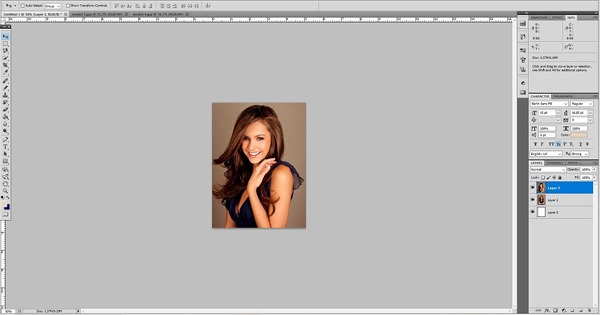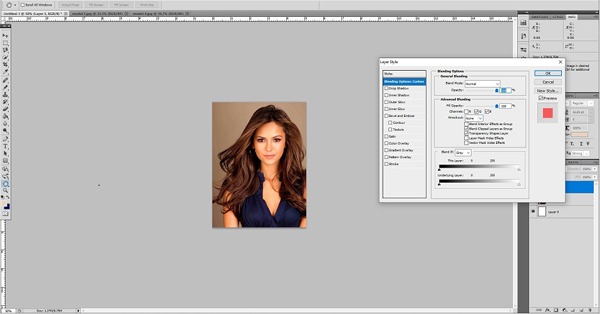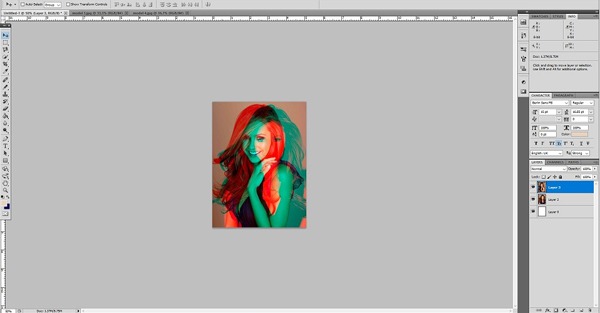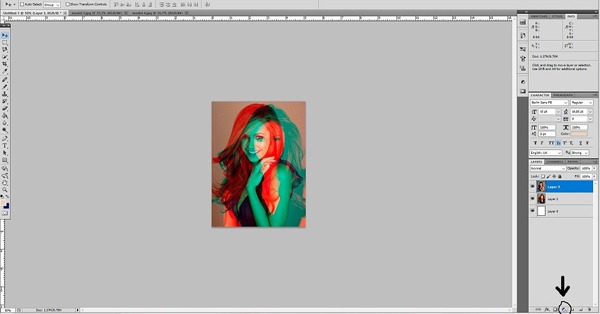

Photoshop
Shooting the Missiles Using Action Script on Flash 3.0
Step 1: Open a new document in flash. Set the stage color as black.
Step 2: Choose Window > Properties from the main menu bar to open the PROPERTIES panel.
Step 3: Expand the Properties section in the panel and choose the Edit button to enlarge the Document Settings window. Next, set the width to 550 px and height to 450 px in the PROPERTIES panel, as shown in Figure below. Choose the Ok button.

Step 4: import an image to perform the action script. Choose File > Import > Import to stage from the main menu bar and Import the unzipped images file. The three files will be imported to the stage, as shown in Figure below.
Step 5: Perform some actions to this image. From the timeline create new layer to the name them as figure follows
Step 6: Now we will use some action script. To make the thumbnails function and to rotate them around the main image.
Code 1:
Shake Effect on Action Script Using Flash 3.0
Step 1: Open a new flash file. Choose Window > Properties from the main menu bar to open the PROPERTIES panel.
Step 2: Expand the Properties section in the panel and choose the Edit button to enlarge the Document Settings window. Next, set the width to 550 pixels and height to 300 pixels in the
PROPERTIES panel, as shown in Figure below. Choose the Ok button.

Step 3: Now we need to draw an oval for masking. Select the Oval tool from tools. Draw an circle in the document.

Step 4: Fill the color (#99FFFF) inside the oval. And name the document on left-top as shake effect on Action Script.

Step 5: Place the button on the document and give instance name it Reset as figure shown below.

Step 6: Create a timeline for layer 1 and name it as player.
Step 7: Create another layer for controlling effects and named it as controls. And for frame select the rectangle tool from toolbar.
Step 8: Create a fourth layer for Performing Action Script.
Step 9: Type the following Action Script in Layer-4(Action Script).
Step 10: Import shake effect images to library. Images name should be same as in library and script. Go to library panel and right click on each image. Choose Properties à Linkage. Check the “Export for Action script” option. And run the program.
Various Color changing on Single Object Using Flash 3.0
Step 1: Open a new flash file. Choose Window > Properties from the main menu bar to open the PROPERTIES panel.
Step 2: Expand the Properties section in the panel and choose the Edit button to enlarge the Document Settings window. Next, set the width to 500 pixels and height to 358 pixels in the
PROPERTIES panel, as shown in Figure below. Choose the Ok button.

Step 3: Draw or import an object from the file. Then select the car and press F8(To convert into symbol) to convert into movie clip.

Step 4: While the object is still selected, go to the Properties Panel (Ctrl+F3) below the stage. On the left side, You will find the Instance name input field there. Call this Movie Clip as whatever you like. For this example, I will call my movie clip object1. See the picture below.

Step 5: Create a new layer above the objects layer and name it button.
Step 6: After that, create a four buttons (red, blue, brown and yellow, etc…). See the picture below.

Step 7: Take the selection tool (V) and click on the red button. Then, go again to the Properties Panel (Ctrl+F3) below the stage. On the left side, You will find the Instance name input field there. Call this button swatch1_btn. See the picture below.

Step 8: Do this also for every other button, but for red, type blue, brown….
Step 9: Create a new layer above the buttons layer and name it action.
Step 10: Click on the first frame of layer action and go to the action script panel (F9). Then, enter this code inside the actions panel:
Code 1: this code is for purple color button

Code 2: this code is for red color button

Code 3: this code is for green color button

Code 4: this code is for blue color button

Code 5: this code is for dark blue color button

Code 6: this code is for grey color button

Step 11: This main button is for applying color to the car.

Step 12: This measurement is used to mix the color with the main color for displaying clear look.

Step 13: This scale is used to pin point the color value and range value

Test your Movie (Ctrl+Enter).
Floating Gallery Using Flash Cs4
Step 1: open a new flash file. Set the width to 600 pixels and the height to 540 pixels. For this pictorial we need 8 images. We have to resize them with 330*330 for the main image and 75*75 thumbnail images. Name the images image-0 to image-7 and thumb-0 to thumb-7 and then import them into the library (File-> import->import to library).

Step 2: By using oval tool (O) to creating a dark grey circle (#323232) circle, without an outline by using dimensions and positions below. I have reduced the magnification in Flash to 50%, so that it’s easier to see.

Step 3: To convert the oval into an MOVIE CLIP (Movie Clip Symbol) called “background”, by pressing F8.

Step 4: Convert this Movie Clip into another one called “gallery” and then, from the properties panel, give it the instance name “gallery”. After that action script will be used to give the gallery some functionality and the instance names given to the MOVIE CLIP’s will be used to reference them.

Step 5: Double click on the “gallery” movie clip and then on the “background” movie clip. Name the layer with the dark oval “background 1”. Create the second layer called “background” and with the lighter grey (#505050) oval on this layer.

Step 6: From the properties panel, set the dimensions and positions, as shown below.

Step 7: Next, drag image 0 onto the “images” layer as shown below. Convert the image to a Movie Clip (F8) called “image0″, selection “export for action script”. This will allow the image to be attached with action script, using the “identifier” as a reference.

Step 8: Convert the Movie Clip again (F8) into another Movie Clip called “image Holder”.

Step 9: Use the Oval Tool to create an oval on the mask layer, setting it to have the dimensions and positions as shown below. Right click on the mask layer and choose “mask”.
Fig (a):

Step 10: The circle should now be masking the image, as shown below.

Step 11: Now we are going to create a temporary guide which will be used to place the thumbnails. Create a new layer called “guide” and see the Oval Tool to create a circle with just the stroke color and no fill. Set the dimensions and positions as figure shown below.

Step 12: Convert the ring into a Movie Clip (F8) called “guide”.

Step 13: Double click on the MOVIE CLIP, create a new layer and draw a line, using the dimensions and positions as figure shown below.

Step 14: Create a vertical line on another new layer as figure shown below.

Step 15: Now copy the 2 lines onto a single new layer.

Step 16: Open the transform panel and set “rotate” to 45 degrees.

Step 17: Now, create a new MOVIE CLIP (Insert > New Symbol) called “thumb0″ and create 2 layers called “image” and “mask”. Drag the thumbnail thumb_0 on to the “image” layer, placing it at the position shown below.

Step 18: Create a circle on the “mask layer”

Step 19: Right click on the “mask” layer and chose “mask”.

Step 20: Convert the mask into an MC (F8) called thumbMask. You can reuse this MC for the other thumbnails.

Step 21: Create a dark grey (#404040) circle on a layer below the image and mask, using the positions and dimensions shown below.

Step 22: This will also be reused for the other thumbnails, so convert it to an MC called “thumbBG”. So, that’s the 1st thumbnails created, now create the other 7, using steps 18 – 23.

Step 23: Next, create a layer called “thumbs” and drag thumb0 MC onto the stage, positioning it at the top over the guide. From the properties panel, give it the instance name “thumb0″.

Step 24: Convert thumb0mc into another MC called thumb Holder. Set the registration point (circled in red) to the center. To rotate the thumbnails with action script, the thumb Holder MC will be rotate so that each thumbnail doesn’t have to be rotated individually. Setting the registration point to the center makes sure the MC will rotate from the center.

Step 25: Add all 8 of the thumbnails where the lines intersect with the ring. Place thumb1 at the second point, thumb2 at the 3rd, and so on.

Step 26: When all the thumbnails have been added, go back to the Gallery Movie Clip and give the thumb Holder MC the instance name “thumb Holder”.

Step 27: Then the image Holder MC and delete the image MC inside of it. This is because we will be adding the image dynamically with action script.

Step 28: Now we are going to create a gallery with rotating thumbnails. We will now use some action script. To make the thumbnails function and to rotate them around the main image.
Step 29: Code Explanation:
Line 1: A stop() function to stop it from looping
Line 2: A variable to hold the number of images in the gallery
Line 3: A boolean variable which is used to pause / unpause the gallery

Step 30: Code Explanation:
Line 6 – 7: A for loop is created to assign each thumbnail a property containing the name of it’s corresponding image. The “i” in the loop will start off at 0 and increment by 1 (i++), while i is below 8 (i Line 8: Now that we are storing “thumb4″ in “t”, we give it the property “image” and assign it to hold image4 (“image”+i)

Step 31: Code Explanation:
Line 9: An onPress function is create for each thumbnail
Line 10: The last displayed image will be held in current, so we use this function to remove it before the new one is attached (line11), upon pressing the thumbnail
Line 11: We use the t.image property to attach the image to “imageHolder” MC. t.image is refered to as this.image because it’s being called from withing an onPress function.
Line 12: When a thumbnail is rolled over with the mouse, the gallery will be pause (see next step), but when the thumbnail is pressed, we want them to start rotating again, so we set “pauseGallery” to equal false.

Step 32: Code Explanation:
Line 14 – 16: “pauseGallery” is set to equal true when the thumbnail is rolled over.
Line 17 – 20: “pauseGallery” is set to equal false when the thumbnail is rolled out.

Step 33: Code Explanation:
Line 21: When the gallery start image0 is attached to be displayed.
Line 22: An onEnterFrame function is created which will execute any code inbetween the braces {} repeatedly, at the frame rate (30) of the movie.
Line 23: Another loop is used to rotate each thumb counter clockwise with 0.5 degrees. This needs to be done because when the thumbnail holder is spinning round (line 27) the thumbnails will stop being upright.
Line 25: Last we rotate the thumbHolder by 0.5 degreess. You can change the value of this and line 27 to increase or decrease the speed of the rotation.

Lightening And Masking Techniques Using Flash
Step 1: open a new flash file. Set the width to 500 pixels and height to 300 pixels. Choose window -> properties from main menu bar, the properties panel is displayed.
Step 2: choose the Edit button under the properties tab to display the document settings window. Set the width to 500px and height to 300px and click ok button to set the stage size.

step 3: Choose file -> import -> import to stage from the main menu, the ALIGN panel will be appear as like the figure below.

Step 4: select the image and then select the Align to stage checkbox from the ALIGN panel. And select the second button from left under the ALIGN and the distribute area. Image will be displayed to stage.
Step 5: Then convert the images into symbol, choose Modify -> Convert to Symbol from the main menu bar, the Convert to Symbol window is displayed; as shown in Figure below. Rename the movie clip as car and choose the OK button.

Step 6: select the car movie clip, and then choose Window -> Properties from the main menu bar to display the PROPERTIES window. Maximize the COLOR effect tab and select Advanced from the Style drop-down list. Enter the values as shown in the figure below.

Step 7: Now select the movie clip and expand the FILTERS tab from the PROPERTIES window and add Blur filter to it with the values as shown below.

Step 8: After adding the properties, the car movie clip will appear as shown in Figure below. Now set the background effect for the car, and then rename the layer as background effect.

Step 9: Create a new layer and name it as blending, and then drag the car image from the library, place it exactly over the stage area. Make it as a movie clip symbol with the name car-blending.
Step 10: Maximize the DISPLAY tab to select Hard Light blending option from the Blending drop down list. Before that make sure, whether PROPERTIES panel is displayed and the car-blending movie clip is selected.
Step 11: maximize the FILTERS tab and add the Glow filter to the car-blending movie clip. To get the desired effect set the parameters in the FILTER tab.

Step 12: For the Color parameter in the Glow filter type use the hex value as #462953.
Step 13: On adding the glow filter to the car-blending movie clip the car on the stage area will be displayed as

Step 14: Create a new layer with the name lightening, and then choose Insert -> New Symbol from the main menu bar to create a new symbol. And then rename the new symbol to lightning and set the symbol type to Movie clip and choose the OK button. Now a blank new movie clip is created.
Step 15: Choose the Brush Tool from the toolbar and create some brush strokes in the stage area as shown below

Step 16: Now, set a new keyframe on frame 7 and create some brush strokes as like the figure shown below.

Step 17: Now, set a new keyframe on frame 15 and create some brush strokes as like the figure shown below.

Step 18: Now, set a new keyframe on frame 22 and create some brush strokes as like the figure shown below.

Step 19: Now, set a new keyframe on frame 29 and create some brush strokes as like the figure shown below.

Step 20: Now, set a new keyframe on frame 29 and create some brush strokes as like the figure shown below. We can also add yellow color as the stroke color.

S
tep 21: Now, set the shape tweening between the all the keyframes. Then create a new layer, and then create random strokes which created on above with two colors with the position of the keyframes exactly at the same position and add shape tweening between the keyframes. The timeline is shown below.

Step 22: Now, add Blur Filter to the movie clip in the PROPERTIES panel and set the Blur X and Y values to 10 and Strength to High. Go back to the main stage and create a new layer. Create a blank movie clip with the name white strokes.
Step 23: Select the Rectangle Tool from the main menubar and create 5 rectangles randomly. Add linear gradient to it in the sequence transparent, white, and transparent, and then arrange them like a figure as shown below

Step 24: Press F6 to create keyframe. Rearrange the rectangle streaks as shown below

Step 25: Press F6 again to create keyframe. Rearrange the rectangle as shown below.

Step 26: Now, Go back to the main stage area and press CTRL + T to activate the TRANSFORM tab. set the rotate value to 20 degrees.
Step 27: Then, create a new layer and rename it as mask. Now create a sketch the image that is shown in the Figure below such that the car image can come exactly in between it.

Step 28: Next, make sure that the layers are placed exactly in its position as shown below

Step 29: Next, select the layer named mask and right click over it and choose the Mask option from the flyout to mask the underneath layer. Publish the file by pressing CTRL + ENTER to get the animation effect as like below

Step 30: Finally we animate the car to get more life into the animation.
Makeup of Pot Paint Dancers using Photoshop
Final Preview:
Step-1 Open a new document in Photoshop. Set background color as black. Use 300 size radius sponge brush and set grey as foreground color then click at the center of the document to bring the below effect.
Step-2 Like above uses the 300 size radius sponge brush, click with few different colors which you like. Here I used green, blue, and red.
Step-3 Place the grunge texture above the colors and set the blend mode to Overlay.
Step-4 Place the few colors pot as like below. Here I took a pot and gave Hue/saturation for remaining pot to change its color.
Step-5 Browse Paint tossing images and download it and place it above the pots.
Step-6 Like above, browse zentai dancers images and download it. Go to Filter –> Filter gallery –> Plastic Wrap. Then erase the bottom of the dancers using sponge brush. Place it overlap to the paint tossing.
Step-7 At the background pattern it with few brush styles.
Hope you like this….
how to use water color in photoshop cs5
Step 1
Open Photoshop and create a new document, I’m using 1920×1200 pixels.
Step 2
Add a new layer, fill it with white then make sure you have black and white for the foreground and background colors. Then go to Filter>Texture>Texturizer. Use Canvas for the Texture, 75% for the Scaling, 3 for the Relief and for the Light choose Top Right.
Step 3
Let’s add a nice texture. You can use the image of your choice. Place the image in the document on top of the other layers. After that, change the Opacity to 75%.
Step 4
Now let’s place an image in our document. I’m using a photo of a guy walking in the field . The image has to go beneath the texture layer. After that go to Layer>Group Layer. The layer of the image will be inside a folder in the Layer Palette. Select the folder and go to Layer>Layer Mask>Hide all.
Step 5
The image is hiding because of the mask. So now, let’s use some Watercolor Brushes. So select one of the watercolor brushes and them white for the color and paint on the layer mask of the group. You will notice that the image will start showing.
Step 6
Pick another Brush and paint again.
Step 7
Let’s just adjust the color of the image. Select the image and go to Image>Adjustment>Photo Filter. Select Warning Filter (85) and 55% for the Density. Also select the Preserve Luminosity option
Conclusion
Just place your logo and that it you will have a really cool effect and super simple to achieve. That can be used for website headers to create a simply awesome design, and, of course to create posters. Also you can reduce the opacity of the paper texture. I reduced to 50%, that way we can drive the viewer’s attention to the watercolor effect.
Poster from the words in photoshop cs5
First we are going to create a new document in Photoshop with 1000×1000 pixels with all the default settings. Fill the background layer with black color.
Step 2
Select Horizontal Type Tool and place any text (white color, caps on) filling all background as you can see below. Only use one text layer.
Rotate text 45 degrees CW by going to Edit > Transform > Rotate.
Step 3
Open photo and copy it to our canvas over text layer. Go to Edit > Free Transform and resize photo to something similar to what I have.
Select text from text layer (Ctrl+left click on text layer thumbnail in layers). Press Ctrl+Shift+I to invert selection. With selection active, select photo layer and press Delete to clear selection contents.
Press Ctrl+D to deactivate selection.
Apply Image > Adjustments > Brightness/Contrast.
Step 4
Create a new layer. Select Horizontal Tool (Arial, white color, 55px) and write something like “DJ Music!”. Create a second new layer and write “Only best hits!” (Arial, white color, 25px).
Rotate text 45 degrees CW by going to Edit > Transform > Rotate on both layers.
Apply Layer > Layer Style > Blending Options > Outer Glow to both layer to make it more readable.
Final Image
This tutorial is now finished and you got a great effect!
Photoshop CS5: How to Create Actions
Recording an action in Photoshop CS5 is incredibly simple. Simply open up the “Actions” palette and hit the new action button seen in the image below.
This should pop open a new window containing various options for the action. Here you can name the action and place it in a set. You can also assign a keyboard shortcut that will activate the action immediately in Photoshop CS5. This is quite handy for those actions you find yourself using on a daily basis.
Once you hit “Record” in the window above, all that’s left is to carry out the steps you’d like to be recorded in the action. Keep in mind that selection sizes, saving and other very specific steps will be replicated exactly in the action. Try to keep your steps generic enough that they’ll work on the full range of images you’ll need the action to apply to.
When you’ve finished carrying out all the desired steps, hit the “Stop” button in the action menu. Then hit the “Play” button to perform the action on another file.
Rock pattern text with floral design using Photoshop
Final Preview:

Step-1 open a new document in Illustrator, type the required text and go to Effect –> 3D –> Extrude & Bevel to get 3d text effect.

Step-2 Copy and paste that 3D text in Photoshop.

Step-3 Now go to Image –> Adjustments –> Level and give the below value.

Step-4 Then select Filter –> Filter gallery –> Texture –> Craquelure and give the below value.

Step-5 Press Ctrl + click on layer thumbnail and create new layer above the background layer then fill black color.

Step-6 Apply Blur –> Gaussian Blur to black filled layer with the radius of 10px.

Step-7 You can change the color of text by giving Image –> Adjustments –> Hue/Saturation.

Step-8 Using brush tool create floral designs like below in new layer.


Step-9 creates a background by like below using filter gallery. First set the background and foreground color in green shades. Then go to Filter –> Filter gallery –> Rough Pastels. Give values as like follows:
Stroke Detail: 15; Stroke Length: 7; Scaling: 109; Relief: 13; Light: top left.

Step-10 Set stroke using gradient overlay in blending options.

Step-11 Now I changed the text color to golden brown.