
SEO        Link Building        Services        Genie Magic        Web Design        Contact Us        SEO Tools
 
   
Blurring Text in Flash , 29 May, 2008


Creating the new and Blurred Images

I am using Photoshop to edit my images, you can use whatever image editor you choose as long as it has a blur filter. Open Photoshop and start a new document with these dimensions: width 200px, and height 60px and set the background color to white. Now type out some text or use any image you wish to use, I wrote Web Design Blog Now go through File> Export Preview to save your image. I used the GIF foremat and saved the file as Web-design.gif.


2- Now go back to your Photoshop document and select the text block. In the properties inspector, go to Effects > Blur > Gaussian blur ( as shown in the image below ).
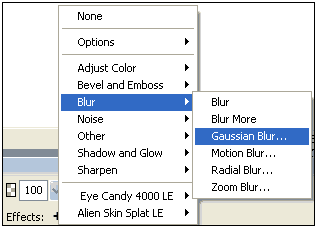
Set Blur radius to 3, and click OK.


Now go to File> Export Preview > there set the settings so that you have a small file size and good quality, and click on Export > Save it as Web-design1.gif.

3- Start a new Flash document with these settings, Width: 300 pixels, and Height: 200 pixels, with a white background. Set the frames per second to 20.

4- Go to File> Import to Library, and import the two images.

5- Now, create a new layer. Go to Insert> Layer. You can name the layers to make life easier, you will surely need this as you learn more complicated stuff in Macromedia Flash. I will change the names of layers. Layer 1 = Original, and Layer 2 = Blurred.

6- Open the Library that you imported the images to. You can do that by pressing (Ctrl+Library), or you can go to Window > Library. Drag and Drop ( Web-design.gif ) to Layer 1 (original). Select the image and press F8 to convert it to a symbol. Select Graphic and name the symbol (original).

7- Now, we have to position the image. Select the Text image. If you can't see the Align control box, then go to Window> Align, Or (Ctrl+K). And click on the highlighted buttons in the image bellow, follow the steps, 1,2,3.
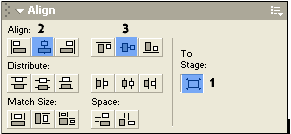


8- Repeat step 6, and drag the second image (Web-design1.gif) to layer 2 (blurred ), and don't forget converting it to a symbol. Repeat step 7 to align the image to the center. The blurred image will cover the original image.

9- Click on frame 40 and drag down to select the layer below, and click F6 to create new key frame for both layers. Do the same thing to frame 20 for both layers.



10- In frame 1 of your second layer ( blurred ) Set the Tween to Motion from the properties inspector. Click on the blurred image and then set the Alpha to 0%.
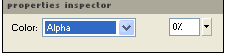


11- In frame 20 of the blurred layer, set the Tween to Motion and set Alpha to 100%. Then Click on frame 40 and set Alpha to 0%. Your timeline should look like the one below.



Now if your try your movie, it should look just fine. But for a smoother effect Go to Frame 1 of the first layer ( original ) with set the Tween to motion and Alpha to 100%, Then go to Frame 20, set Tween to Motion, and set Alpha to 0%. Lastly click on Frame 40 and set Alpha to 100%.

That must do it, you can now text your movie to see the animation in Action.

Labels:

                                Earthlink Netscape Netvouz RawSugar Shadows Sphinn StumbleUpon Yahoo MyWeb


posted by power @ 11:09 PM permanent link   |

Post a Comment

|


zooming effect , 27 May, 2008


1.Zooming effect as shown in the below picture can be created by following these steps.

2.create a layer like this.
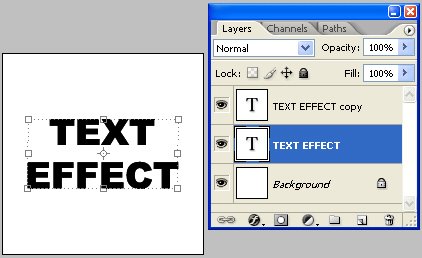
3.create a copy of that layer and place it in the same position of the original layer.


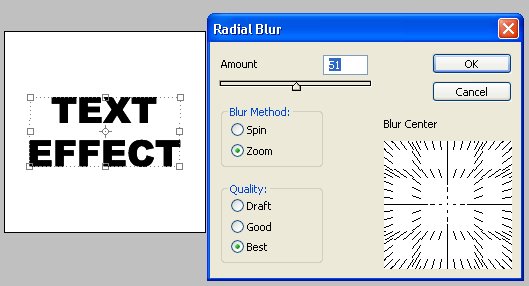
4.select the original layer and apply radial blur effect option.
filter -> blur -> Radial blur


5.Finally you will get an output like this.

                                Earthlink Netscape Netvouz RawSugar Shadows Sphinn StumbleUpon Yahoo MyWeb


posted by power @ 8:16 PM permanent link   |

Post a Comment

|


creating word effect , 08 May, 2008


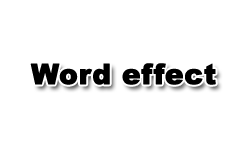
1.The effect shown below can be easily made by following simple steps.

2.Create a text layer.


3.In the blending option select following options.
1.select stroke option -> color= white
size = 2
2.select drop shadow option -> opacity = 75%
distance = 5
spread = 0
size = 5
finally you will get the output like this.

                                Earthlink Netscape Netvouz RawSugar Shadows Sphinn StumbleUpon Yahoo MyWeb


posted by jack @ 2:10 AM permanent link   |

Post a Comment

|


Categories
Archieves
 
 
Previous posts


PageRank 10 sites
Search Engine Optimization SEO Blog
Search Engine
Optimization SEO News
SEO Copywriting Blog
Web Design Blog
Link Building Blog
Pay Per Click (PPC) Blog
Programming Blog
Search EngineGenie Blog
Lara's Personnal Blog
Search Engine
Optimization SEO Forum
SEO Comics
Webmaster & Search Events


search engine optimization
search engine marketing
SEO consulting
SEO plans
SEO services USA
search engine optimization SEO forum
SEO comics
Webmaster & Search Events
SEO Faqs
link popularity
strategies of link building
link building services
link cost
link request quote
link building blog
search engine genie company
our team
our celebrations
our experience
SEO
why us

web design
web designing services
dynamic website
web design and marketing
simple e-commerce website
complex e-commerce website
search engine friendly site
web design blog
web design
link building
internet marketing
ecommerce implementation
pay per click services
shopping feeds optimization
shopping cart customization
product development
online forms & database integration
programming services
PHP programming services
programming services Java,J2EE
.NET application development programming services
business process outsourcing
offshore outsourcing
Google Products(froogle feeds)
search engine optimization articles
google articles
yahoo articles
miscellenous articles
search engine optimization SEO blog
search engine optimization SEO news
SEO copywriting blog
web design blog
link building blog
pay per click (PPC) blog
programming blog
lara personnal blog
Search Engine Genie Blog
Google Tools
Yahoo Tools
MSN Tools
Comparison Tools
Link Popularity Tools
Search Engines Tools
Site Tools
Keyword tools

contact us
support
our guarantee
events


Search Engine Optimization SEO Company
| Privacy Policy | Term of Service | Copyright

Search Engine Genie is an Ethical Search Engine Optimization Company Specializing in Search Engine Marketing, Search Engine Promotion and Search Engine Ranking Services.