So the first thing we are going to do is to open a new file in Photoshop, this one is 1200 x 400 pixels, write down contempotech using big fonts, you can use any font of your choice.
Now that we have the type we are going to start working on folding the letters one by one, so starting with the C we are going to select a box around the letter “C” using the Rectangular Marquee Tool (M), once we have it selected, hold Ctrl + C to copy the letter and then press Ctrl + V to paste it, name the layer you pasted “C”(change the color that you want on the contempotech text before you copy and paste it .
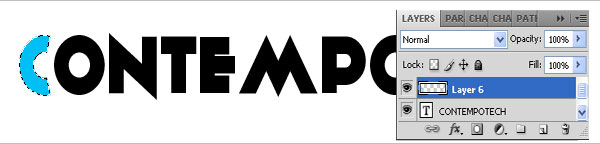
We already have the letter “C” on a new layer now we are going to select the part that we want to fold it, I like to use the Polygonal Lasso Tool (L) and select part of the letter that I want to fold it.

Now that we have a selection we are going to copy the selection by hitting Ctrl + C and then delete the selection on the layer “C”, paste it by hitting Ctrl + V, when you paste it note that it will be on a new layer so name that “C-fold” as you can see here.
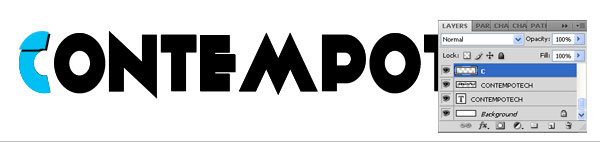
First lets change the color of it, go to Image > Adjustment > Hue Saturation (Ctrl+U) bring the Saturation to -100 and Lightness to +60 to give a gray color so it looks like the back of the letter is folding and go to Edit > Transform > Flip Vertical (note that because we are folding from up to down, if it was side do side we would have to flip it horizontal) and then we have to Edit > Transform > Rotate and make sure we rotate the folded area exactly on the angle we want, make sure you place it right where it’s folding as you can see on the image.

Go back on the “C-fold” layer and go to Layer > Layer Style > Drop Shadow and reduce the Opacity from 75% to 25% and try to adjust the angle to be the same as the folding area, I set mine to 135, also reduce the Distance to 2px, and the rest can remain the same.

Our last step on the letter A will be to go back on the “C” layer, hold Ctrl and click on it to select the A we have, create a new layer (name it C-shade) and with the Gradient Tool – Linear Gradient with the color black apply it from the bottom up, change the layer mode to Overlay.

Our first letter is done, now we are going to repeat pretty much the same steps on each letter to get to the end with a good result. To get more organized put all the “C” layers into a folder called “O” and start working the same process on the letter O and so on.

At the end delete the text layer “CONTEMPOTECH” and you done!

Leave a Reply