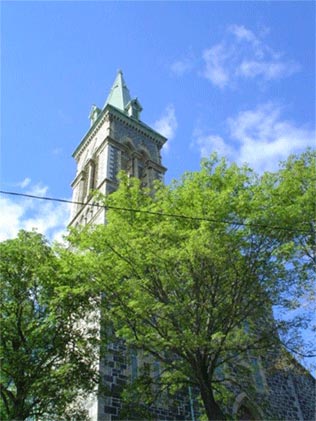
1. Here’s the starting photo. A church in my neighborhood, surrounded by lush trees.
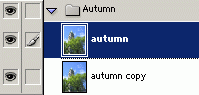
2. I’ve created a Set with the original photo called ‘autumn’.
I then duplicated it and positioned the copy version below the original in the layer stack.
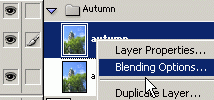
Next, right-click on the original photo layer and choose ‘Blending Options’ as I have captured below.
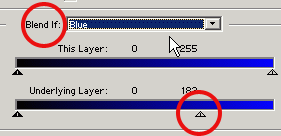
3. In the main ‘Blending Options’ panel change the ‘Blend If’ default Grey to ‘Blue’ and then drag the far right ‘Underlying Layer’ slider to the left as I have captured below.
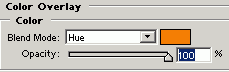
4. Next, from the ‘Color Overlay’ blending option change to a color that best represents autumn leaves. (I used #F17F04) and change the ‘Blending Mode’ to ‘Hue’ as I have captured below.
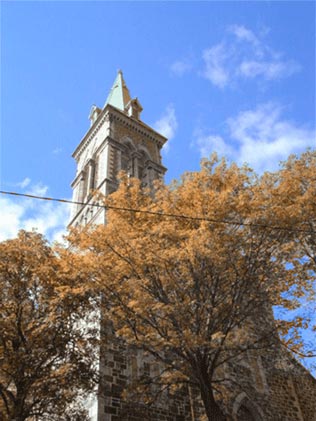
Here’s the final result.


Leave a Reply