




What Happens When You Enter a URL in a Browser?
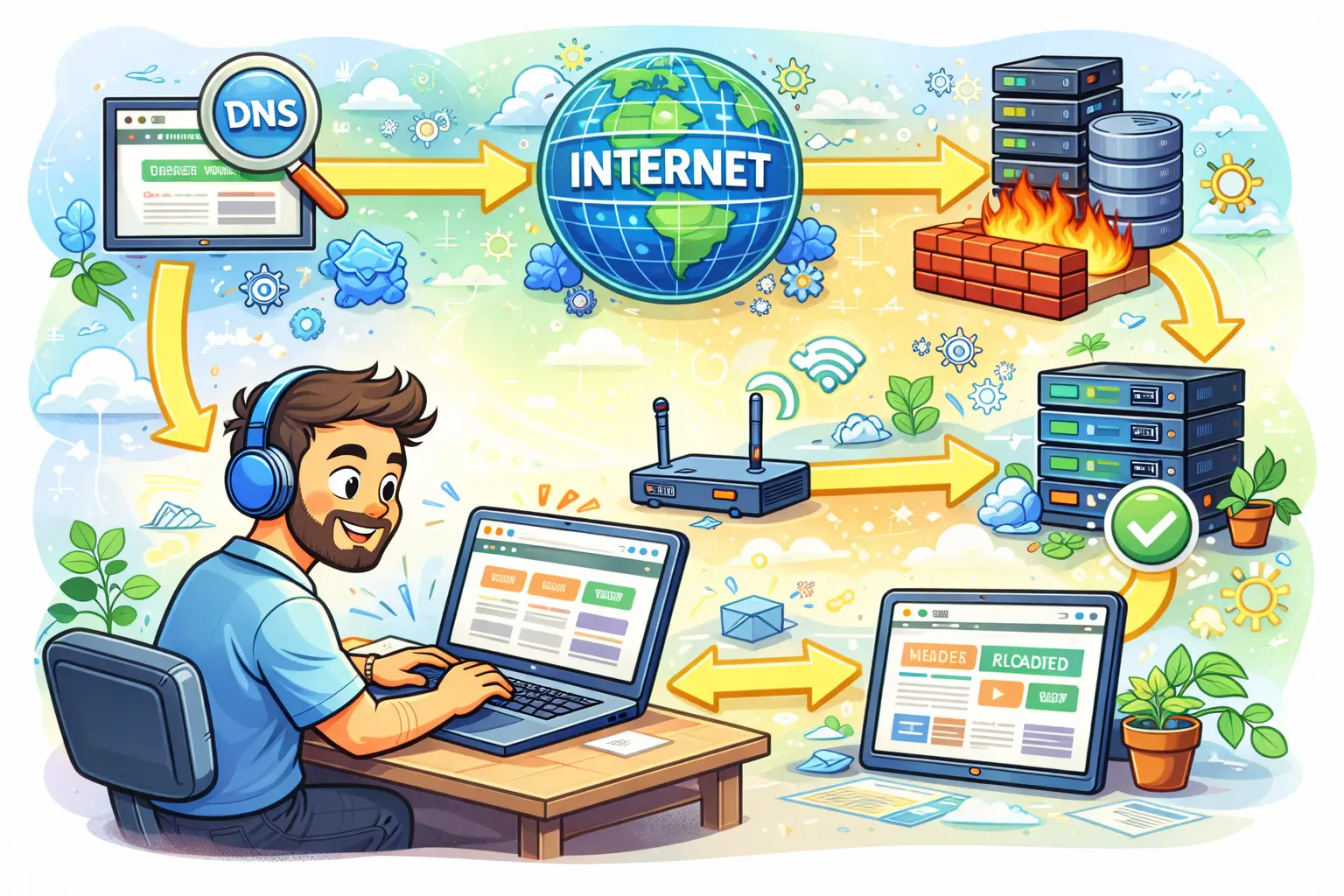
When you type a website address like www.example.com and press Enter, the page loads in seconds (sometimes milliseconds). But behind the scenes, your browser performs many technical actions—finding the server, creating a secure connection, requesting data, and then building the webpage you see. Here’s the process explained step-by-step in simple paragraphs.
Step 1: You type a URL and press Enter
A URL is the address of a resource on the internet. When you enter it, your browser reads the URL, understands which protocol to use (HTTP or HTTPS), identifies the domain name, and checks which page or path you are trying to access. This is the starting point that tells the browser what it needs to fetch and how to fetch it.
Step 2: The browser checks cache to load faster
Before reaching out to the internet, the browser first checks whether it already has some of the required data saved locally. If you visited the site before, your browser may have cached files like images, stylesheets, or scripts. It may also have saved DNS information. If relevant cached data is available and still valid, the browser can skip some network steps and load parts of the page much faster.
Step 3: DNS lookup converts the domain into an IP address
Computers don’t communicate using domain names like “example.com”; they communicate using IP addresses. So the browser performs a DNS lookup to find the IP address linked to that domain. It checks local DNS records first and, if needed, asks DNS servers on the network and internet until it gets the correct IP. Once the IP address is found, the browser knows which server to contact to request the website.
Step 4: A connection is created with the destination server
After obtaining the IP address, the browser starts a connection with that server. For reliability, the connection typically begins with a TCP handshake, which confirms both sides are ready to communicate. If the site uses HTTPS (which most sites do), an additional TLS/SSL handshake occurs to verify the website’s security certificate and set up encrypted communication so data cannot be easily intercepted.
Step 5: The browser sends an HTTP request
Once the connection is ready, the browser sends an HTTP request to the server. In most cases, it sends a GET request asking for the webpage’s main HTML file. This request includes important information like the browser type, supported formats, language settings, and cookies (which may be used for login sessions or personalization). This request is basically the browser saying, “Send me the content for this page.”
Step 6: The server processes the request and prepares a response
When the request reaches the server, it is handled by web server software and often forwarded to the website application. The backend may check permissions, read cookies, or run business logic. If the page is dynamic, the server may query a database to fetch content such as product details, blog posts, or user data. The server then builds the final response, which can include HTML and references to other resources like CSS and JavaScript.
Step 7: The server returns an HTTP response
The server replies with an HTTP response containing a status code and the requested content. A successful response typically returns status code 200, while other codes indicate redirects, missing pages, or server errors. Along with HTML content, the response includes headers that tell the browser things like how to cache the page, whether the response is compressed, and whether cookies should be saved.
Step 8: The browser renders the webpage
After receiving the HTML, the browser begins to render the page. It parses the HTML to build the page structure, downloads CSS to understand the styling, and then combines structure and styling to determine what should appear on screen and where. After layout is calculated, the browser paints pixels to display the visible page. This is the stage where the content starts appearing on your screen.
Step 9: The browser loads additional resources
The initial HTML usually references many additional files such as stylesheets, JavaScript files, images, icons, and fonts. The browser downloads these resources—often in parallel—and updates the page as they arrive. Some websites also load data from APIs after the page starts rendering, which is common in modern web applications and dynamic sites.
Step 10: The page becomes interactive and fully usable
As JavaScript finishes loading and running, the page becomes interactive. Buttons respond, menus open, forms submit, and dynamic content appears. The browser may also run analytics and tracking scripts in the background. Once the most important content is loaded and the page responds smoothly to user actions, the website experience is considered fully ready.
Conclusion
When you enter a URL, your browser checks cache, finds the site’s IP address through DNS, creates a secure connection, sends a request, receives a response, and then renders and loads everything needed to display and run the page.
No comments yet.