




Archive for March, 2011
Google Commerce Search 3.0 – With New Feature For Retailers
Google upgraded its Google Commerce Search service to version 3.0, adding instant search technology and other tools to develop customers search experience on retailers’ Websites.
Borrowing from its Google Instant predictive-search technology, Commerce Search 3.0 provides search-as-you-type functionality to let e-commerce Websites fetch product results for shoppers with every keystroke from the search bar.
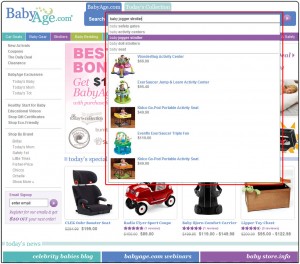
Commerce Search 3.0 shows shoppers when a product is also obtainable in a store nearby, right within the search results. This technology borrows from Google’s existing Product Search service, which shows users whether products they’re searching for are available nearby.
New-product recommendations also help shoppers make purchase decisions by showing them what other buyers purchased. Both the instant search and recommendations should be big savers at a time when online shoppers make regular searches, particularly during the busy holiday season.
Commerce Search Version 2.0 included a full merchandising dashboard to let retail merchant’s better control promotions, product-ranking policy and filtering.
In version 3.0, Google is also now allowing retailers to generate promotions that appear next to related search queries designate banner areas and set re-direct rules.
Google considers HealthWarehouse.com, Forever21.com and BabyAge.com, Birkenstock USA, Smart Furniture and Chemist Direct among its Commerce Search customers.
Tracking Google Product Search Traffic Using Google Analytics
A Google Analytics filter is a helpful tool to track traffic from a particular directory on your website or traffic from a particular source. Because of this, Google Analytics Filter is also one more good choice that can be used to track traffic form Google Product search. Before starting to use this filter, you need to identify “what you are going to track” first.
If you search on Google with “Ceramic Blue Travel Coffee Cup”, the resulting Google Search will show the following URL:
http://www.google.com/search?hl=en&rlz=1B3GGLL_enIN368IN368&q=Ceramic+Blue+Travel+Coffee+Cup
However, if you search particularly on Google Product search (Google Shopping) with “Ceramic Blue Travel Coffee Cup”, you will see the search result URL is:
http://www.google.com/products?q=Ceramic+Blue+Travel+Coffee+Cup&aq=f
Track Google Product – Filter
Therefore, if you want to use Google Analytics filters to track all organic traffic which comes from http://www.google.com/products? You can follow these steps:
- Login to Google analytics.
- Click on the Account Name on which you would like to track the traffic.
- Click on “Filter Manager” then “Add Filter”
- Name the filter on the given text box.
- Choose Custom filter > Advance Filter.
- Now select & add the following values:
- Field A -> Extract A Referral google\.com/products
- Filed B – > Extract B Campaign Medium organic
- Campaign Source Product_Search
- Filed A Required: choose yes
- Filed B Required: choose yes
- Override Output Field: Choose Yes
- Case Sensitive: Choose No or yes as per server support.
Now choose and add the profile on which you would like to add the Filter and save the filter.
- Field A will look for a referrer URL as google.com/products.
- Field B will limit the information.
- The Output to Constructor will help you show the data as “Google Product Search” on your Analytics referral results.
Updates In Merchant Center
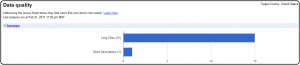
Google Merchant Center Dashboard and Data quality page has been updated with graphs detailing product counts for Product Search and Product Ads and number of data feed issues, respectively.
The Dashboard
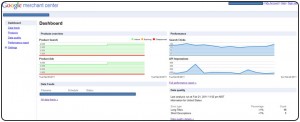
New Data quality Summary graph
Instant Results In Google Product Search
Google has announced that they have added Google Instant to Google Shopping Search view within the web results.
If you are on Google.com, search for a product and then sift your search on the left hand side by “Shopping”, Google Instant will permit you to search for new products. This feature is still not added in Google Product Search home page.
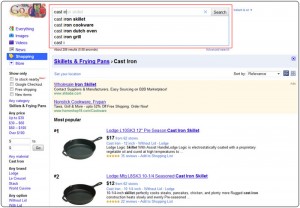
Google said, “Now you can shop faster than ever and get the speed of Google Instant when comparing prices, looking for nearby stores and learning about products you desire to buy.”
With Instant Search, Google uses the wealth of data it possesses to guess what users will want to see and serve the results accordingly. With each character that a user types, Google vigorously updates the search results page–including organic, shopping and sponsored links.
With Google Instant Search, a likely scenario is that the user will type a few characters and wait for the results. As users type a few more characters, new results will automatically exhibit on the search page. Before typing the whole phrase, there is a good chance that the users will see something that catches their eyes and click to the sites. The user’s concentration will likely be focused in the first few listings around the search box as they persist to type. And, there is a higher degree of likelihood that they will not finish typing their long phrase and make it to the listings that are a straight match for their original intended search.
This scenario presents challenges for the normal small site owners or people doing their own search engine optimization work. Click-throughs will tilt more heavily toward those who have the top few positions in paid and organic, and could profit those who have a lock on the more generic terms, which often times are larger brands.
Suggestions To Improve Your Google Product Search Experience
You can improve your Google Product Search experience, Google has offered two suggestions.
- Include “rel=canonical” tags on your website. Many merchants have numerous identical product pages for each item. With the rel=”canonical” tag, your webmaster can point to which URL you’d like to include on Google.com. This tag is essential for participation in Rich Snippets, and also allows you to provide clean, user-friendly URLs that don’t include excess tracking or category navigation parameters.
- Update your technical contact in the Google Merchant Center. If you’ve ever wondered why your feed didn’t process, then you should make sure that your contact information is up-to-date in the Google Merchant Center’s Settings page. They will be sending you an email to this address if there are technical issues with your account, such as problems with the content you submitted. They will also assist you in giving you suggestions on topics like data quality.
Suggestions To Improve Your Google Growth