




Developer Tools
Gemini CLI Brings Google AI Directly Into the Developer Terminal
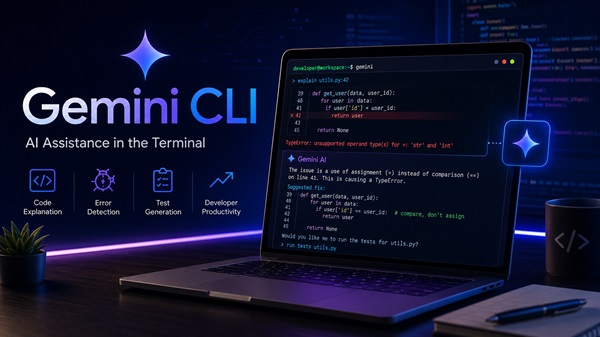
AI tools have become essential in software development. Earlier, programmers used AI mainly for asking coding questions, understanding errors, or writing small code snippets. Today, AI is moving closer to the actual development environment.
Google’s Gemini CLI is one of the tools that shows this shift. It brings AI assistance directly into the command line, helping developers work faster without leaving their terminal.
For developers, the terminal is an important workspace. It is used to run projects, install packages, manage Git, test applications, fix errors, and handle many daily development tasks. Gemini CLI works inside this same environment, making AI support easier to access during the coding process.
Instead of switching between the terminal, browser, documentation, and other tools, developers can get help directly from the command-line interface. This makes the workflow smoother and helps developers stay focused on their work.
AI Support Inside the Developer Workflow
A common problem in software development is the need to stop work and search for solutions when something goes wrong.
For example, when a project shows a long error message, a developer may copy the error, open a browser, search for answers, read multiple pages, and then come back to the code. This process can take time and break concentration.
Gemini CLI helps reduce this problem by allowing developers to ask for help directly from the terminal. They can request explanations, get suggestions, understand errors, and continue working without moving away from their current workspace.
Beginners can use Gemini CLI to understand confusing command-line errors, learn how commands work, and get simple explanations. Experienced developers can use it to save time when working with large projects, unfamiliar codebases, or repeated development tasks.
How Gemini CLI Helps Developers
Gemini CLI can support developers in many common programming situations. It can help explain code, review files, suggest improvements, find possible issues, and provide guidance for fixing errors.
When a developer faces an error, Gemini CLI can help explain the possible reason behind it. Instead of only seeing a long technical message, the developer can get a clearer explanation of what may be happening and what should be checked next.
This is useful during debugging because some error messages can look confusing, especially in large projects with many files and dependencies. Gemini CLI can help developers understand the error step by step.
It can also help when working on a new project. Developers often need time to understand the structure of a codebase. Gemini CLI can help explain files, functions, and project flow, making it easier to understand how the application is built.
Useful Tasks Developers Can Handle With Gemini CLI
Gemini CLI can help developers with many daily coding tasks directly from the terminal.
It can explain code in simple language, which is useful when working with a new file or unfamiliar project. Developers can ask Gemini CLI to describe what a function does or how a part of the code works.
It can also help find possible mistakes in code. If a file has errors or confusing logic, Gemini CLI can review it and suggest what might need to be fixed.
Developers can use Gemini CLI to improve existing code by making it cleaner, easier to read, or better organized. It can also help create new code based on simple instructions.
Another useful task is explaining command-line errors. Instead of struggling with long error messages, developers can ask Gemini CLI to explain the issue in simple words and suggest the next step.
Gemini CLI can also help with test cases, project structure, and understanding unfamiliar code faster.
However, developers should not rely on it fully. Every suggestion should be checked and tested before being used in a real project. Gemini CLI can be used as a coding assistant, but the final decision should always come from the developer.
Benefits for Beginners
For beginners, the terminal can sometimes feel difficult. Error messages may look confusing, and even simple commands can be hard to understand in the early learning stage.
Gemini CLI can make this easier by giving simple explanations. A beginner can ask why an error happened, what a command does, or how to fix a basic issue.
This can make learning more comfortable because help is available in the same place where the work is happening.
Instead of searching through many pages, beginners can get a direct explanation and continue practicing. This can improve confidence and help them understand programming concepts faster.
Benefits for Experienced Developers
When working on a large project, developers may need to understand many files, functions, and dependencies. Reading everything manually can take time. Gemini CLI can help summarize code, explain parts of the project, and suggest where to look next.
It can also help when developers are working under deadlines. Quick explanations, code suggestions, and debugging help can save valuable time.
For teams, tools like Gemini CLI can support faster development, especially when developers need to understand unfamiliar sections of code or review changes more efficiently.
Gemini CLI and Modern Software Development
Gemini CLI is part of a larger change happening in software development. AI is no longer only a separate tool used outside the coding environment. It is becoming part of the tools developers already use every day.
This shift can make coding more efficient. Developers can ask for support while staying inside their workflow. They can get help with errors, code understanding, and improvements without constantly switching between different platforms.
However, AI tools should still be used carefully. They can provide useful support, but they may not always understand the full project requirement or business logic.
Important Limitations Developers Should Remember
Gemini CLI can be helpful, but it should not be treated as perfect.
AI-generated suggestions may sometimes be incomplete or incorrect. A code suggestion may look good but may not fully match the project’s requirement. That is why testing and review are always necessary.
Security is also an important factor. Developers need to be careful when dealing with private code, passwords, API keys, tokens, customer data, and confidential project files. Sensitive information should not be shared carelessly with any tool.
AI can support development, but responsibility still belongs to the human developer.
Best Practices for Using Gemini CLI
Developers can get better results from Gemini CLI by using it carefully.
It is better to start with small tasks. For example, developers can ask it to explain one error, review one function, or suggest improvements for one file. Smaller requests usually produce easier-to-check answers.
Every suggestion should be reviewed before applying it. AI-generated code should be tested properly, especially when used in live projects.
Developers should also avoid sharing sensitive information. Private credentials, API keys, passwords, and confidential files should always be protected.
Gemini CLI should be used as an assistant, not as a replacement for programming knowledge.
Why Gemini CLI Matters for Developers
Gemini CLI shows how AI tools are becoming part of the real development workflow. Instead of using AI separately in a browser, developers can get help directly inside the terminal where they already write commands, run projects, and fix errors.
It can help developers save time, understand code faster, explain errors, and get useful suggestions while working. This makes it helpful for both beginners and experienced developers.
However, Gemini CLI should be used as a support tool, not as a replacement for developers. Every suggestion should be reviewed, tested, and checked before using it in a real project.
As AI continues to grow in software development, tools like Gemini CLI can make coding faster, easier, and more productive while still keeping human knowledge and decision-making at the center.