



SEO Tips & Strategies
What Is Internal Linking and Why Is It Important for SEO?
 Internal linking is one of the simplest SEO techniques, but it is often overlooked. A well-planned internal linking structure can help visitors discover more useful content, make important pages easier to find, and help search engines understand how different pages on your website are connected.
Unlike backlinks, which come from other websites, internal links connect pages within your own website. When used naturally, they can improve navigation, strengthen important pages, and create a clearer structure for both users and search engines.
What Is Internal Linking?
Internal linking means adding links from one page of your website to another page on the same website.
For example, a blog post about keyword research might link to another article about search intent. A service page about technical SEO might link to a blog explaining website indexing problems.
These links help visitors move naturally through related content instead of reaching the end of a page and leaving the website.
Internal links can appear inside blog posts, navigation menus, category pages, related-content sections, service pages, and other areas of a website. The most useful internal links are usually those that connect closely related topics and give readers a logical next step.
Why Internal Links Matter for SEO
Internal linking helps search engines discover pages and understand which content is important.
When several relevant pages link to another page, it gives search engines additional context about that page and its relationship to the rest of the website.
Internal links can also help distribute authority across a site. A strong page that already attracts traffic or backlinks can link to another relevant page and help make that content easier for search engines and users to discover.
From a visitor’s perspective, internal links improve the browsing experience. Someone reading about one SEO topic may naturally want to learn about another related topic. Giving them a useful link keeps them engaged with the website instead of forcing them to search elsewhere.
How Internal Linking Helps Google Understand Your Website
A website should have a clear structure rather than a collection of isolated pages.
Internal links help create that structure by showing how different topics relate to each other. For example, a main SEO guide might connect to individual articles about technical SEO, backlinks, search intent, internal linking, and keyword research.
This creates a logical relationship between the main topic and its supporting content.
Descriptive anchor text also provides useful context. Instead of linking vague words such as “click here,” a natural phrase like “technical SEO audit” gives visitors and search engines a better idea of what they will find on the linked page.
A clear internal structure can also reduce the chances of important content becoming difficult to discover.
How to Build a Better Internal Linking Structure
Good internal linking should feel natural. Links should be added where they genuinely help readers understand a topic or discover useful related information.
When publishing a new blog post, look for older relevant articles that can link to the new content. At the same time, check whether the new article can link to existing pages.
Important service pages and high-value content should receive internal links from relevant sections of the website. However, links should not be forced into unrelated content simply for SEO purposes.
It is also useful to review older posts regularly. As a website grows, new linking opportunities appear. Updating older content with relevant internal links can strengthen the overall structure without creating completely new pages.
Common Internal Linking Mistakes
One common mistake is adding too many links without considering whether they are useful. A page filled with unnecessary links can become distracting and reduce the value of each recommendation.
Another problem is using the same generic anchor text repeatedly. Clear and descriptive wording usually creates a better experience.
Broken internal links should also be fixed quickly. If a page has been removed or its URL has changed, links pointing to the old address can frustrate visitors and make the website harder to navigate.
Some websites also focus heavily on their newest content while leaving older pages isolated. Valuable evergreen articles should continue receiving relevant internal links when appropriate.
Final Thoughts
Internal linking is a simple SEO strategy that can make a meaningful difference to how visitors and search engines understand a website.
The goal is not to add as many links as possible. It is to create useful connections between related pages.
A strong internal linking structure helps users discover more content, gives important pages greater visibility, and creates a clearer path through your website.
When publishing new content, take a moment to ask which existing pages should link to it and which useful pages the new article should reference. That small habit can gradually build a much stronger website structure.
What Are SERP Features and How Do They Affect SEO?
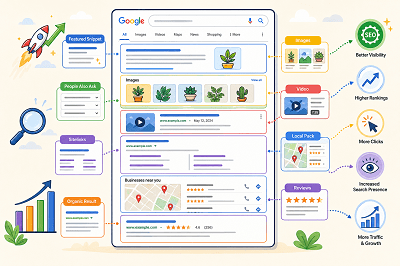
When you search on Google, the results page often shows more than a list of blue links. You may see images, videos, featured answers, local results, ratings, or other special elements.
These are commonly called SERP features.
What Are SERP Features?
SERP stands for Search Engine Results Page. SERP features are special elements that appear alongside or instead of traditional search results.
Google changes the features it shows depending on the search query. For example, a local search may show local results, while an image-related search may display more images.
Common Types of SERP Features
Some common SERP features include:
- Featured snippets
- Rich results
- Images
- Videos
- Sitelinks
- Review information
- Local results
- People Also Ask results
Google also supports different visual search elements depending on the type of content and the user’s search.
What Is a Featured Snippet?
A featured snippet is a special result that displays a short answer or information from a webpage prominently in the search results.
Google automatically decides whether a page is suitable for a featured snippet. Website owners cannot manually mark a page as a featured snippet.
What Are Rich Results?
Rich results are search listings that can include additional visual information such as ratings, images, product details, event information, or other interactive elements.
Adding the correct structured data can help Google understand your page and make it eligible for certain rich results. However, adding structured data does not guarantee that a rich result will appear.
How Do SERP Features Affect SEO?
SERP features can make a search result more noticeable and give users more information before they click.
Appearing in a featured snippet, image result, video result, or rich result can give your website additional visibility on the search results page.
At the same time, SERP features also create more competition for attention because traditional organic results may appear alongside many other visual elements.
How Can You Improve Your Chances of Appearing?
Start by creating clear, useful content that directly answers what users are searching for. Use descriptive headings, relevant images, and well-structured pages.
Where appropriate, you can also add supported structured data to help Google better understand your content and make it eligible for richer search appearances.
SERP features have made Google search results much more visual and interactive. Understanding how they work can help you create content that is easier for search engines to understand and more noticeable to users.
What Are Backlinks and Why Do They Matter for SEO?
Backlinks are an important part of SEO, but the idea behind them is actually very simple.
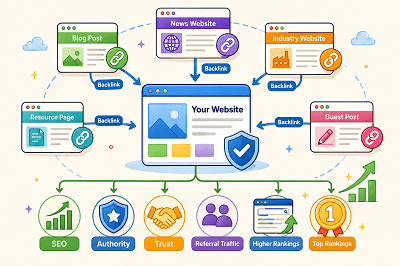
A backlink is a link from another website that points to your website.
For example, if another blog mentions your business and links to one of your pages, your website has received a backlink.
 What Is a Backlink?
Backlinks connect one website to another.
Imagine you publish a useful guide on your website. Another website finds that guide helpful and links to it in one of its articles.
That link becomes a backlink to your website.
Backlinks can send visitors directly to your site and can also help search engines discover your pages.
Why Do Backlinks Matter for SEO?
Backlinks can act as signals that other websites find your content useful or worth mentioning.
When reputable and relevant websites link to your pages, it can help strengthen your website’s authority and visibility in search results.
However, quality is more important than quantity.
One useful backlink from a trusted website can be more valuable than many links from low-quality or unrelated websites.
What Makes a Good Backlink?
A good backlink usually comes from a website that is relevant to your industry, trusted, and publishing useful content. The link should also appear naturally within the content instead of being forced. For example, if you run a digital marketing website, a backlink from a respected marketing or technology blog would usually be more valuable than a link from an unrelated website.
Are All Backlinks Good?
Not all backlinks are helpful. Some may come from spammy, low-quality, or unrelated websites, and these links may provide little value. Buying large numbers of backlinks or creating links only to manipulate rankings can also lead to SEO problems. A better approach is to focus on earning natural links from relevant and trustworthy websites.
How Can You Get Backlinks?
You can earn backlinks by creating useful content that other websites want to mention or share. This may include helpful guides, original research, industry articles, useful resources, or content that solves a common problem. You can also reach out to relevant websites or look for broken-link opportunities. The main goal is to create something valuable enough that another website has a genuine reason to link to it.
Backlinks vs Internal Links
Backlinks and internal links are different.
A backlink comes from another website to your website.
An internal link connects one page of your own website to another page on the same site.
Both are useful for SEO, but they serve different purposes.
Backlinks can help build your website’s authority, while internal links help users and search engines navigate your website.
Backlinks remain an important part of SEO because they can help search engines discover content and understand which pages other websites consider useful. Instead of chasing as many links as possible, focus on earning relevant, trustworthy, and natural backlinks by publishing genuinely useful content.
Why Your Website Traffic Is Dropping and How to Fix It
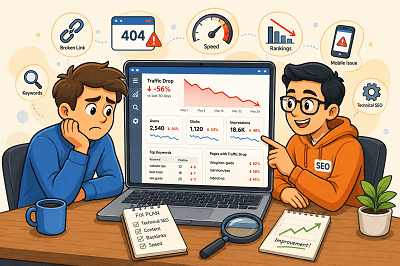
Seeing your website traffic suddenly fall can be worrying. But a traffic drop does not always mean your SEO has failed.
Rankings, technical issues, competitors, seasonal searches, and outdated content can all affect your visitor numbers. The key is finding out where the drop started and what caused it.
First, Find Out Where the Traffic Dropped
Before changing your website, check Google Search Console and Google Analytics.
Look for:
- Pages that lost the most visitors
- Keywords receiving fewer clicks
- Changes in impressions
- Traffic drops from specific devices or countries
Once you know where the decline happened, finding the cause becomes much easier.
Did Your Google Rankings Fall?
A ranking drop is one of the most common reasons for losing organic traffic.
Check whether your important pages and keywords have moved lower in Google. If they have, review the pages ranking above you and improve your content, headings, internal links, and overall usefulness.
Is Your Content Getting Old?
Content that performed well a year ago may no longer provide the best answer.
Update old statistics, replace outdated information, improve weak sections, and add useful new details. Sometimes refreshing an existing page is more valuable than publishing another similar article.
Are Technical Problems Hurting Your Site?
A broken page, indexing issue, server problem, or incorrect redirect can quietly reduce traffic.
Check important pages in Google Search Console and make sure Google can crawl and index them correctly. Also look for broken links and pages returning errors.
Have Your Competitors Improved?
Sometimes your traffic falls even when you haven’t changed anything.
Competitors may have published better content, improved their websites, or earned stronger backlinks. Compare the pages ranking above yours and look for areas where your page can offer something more useful.
Has Search Demand Changed?
Not every traffic decline is an SEO problem.
Some searches are seasonal. Others become less popular as customer interests change.
Compare traffic with the same period from the previous year before assuming something is wrong. Google Trends can also help you understand whether interest in a topic has changed.
Is Your Website Slow or Difficult to Use?
Slow pages and poor mobile experiences can frustrate visitors.
Make sure your website loads quickly, works properly on mobile devices, and makes important information easy to find.
Website traffic can drop for many reasons, so avoid making random SEO changes immediately. Start with your data, identify which pages or keywords lost traffic, and then investigate the cause. Once you understand what changed, you can focus on the improvements that matter most.
Why Is My Website Not Showing Up on Google? 7 Common SEO Problems
If your website does not show up on Google, there might be some reasons.
At times, it is because Google has not indexed your website. It may be the case that Google has indexed your website but your site is ranking very low.
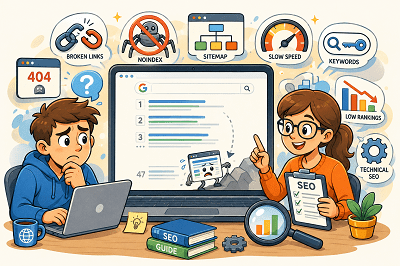
Here are the seven most common SEO issues:
1. Google Has Not Indexed Your Website
In order to show your web pages on Google, first, Google needs to crawl them.
Fix: Configure Google Search Console, submit your sitemap, and use URL Inspection tool.
2. Your Website Is Blocking Google
You have set noindex on your website or you have blocked your site by using a robots.txt file.
Fix: Make sure that you are not blocking Google in any way.
3. Your Website Has Technical SEO Issues
It may happen due to various technical issues such as broken links, server errors, incorrect redirects, and duplicate pages.
Fix: Do an SEO audit and correct any technical issues that might hinder crawling and indexing.
4. The Information Provided by Your Content Is Inadequate
Pages that have very little information can fail to rank.
Google loves content that is valuable, clear, and user-focused.
Fix: Make sure you create valuable content that clearly communicates your products, services, or topic.
5. You are Using the Wrong Keywords
Your site may fail to show up if you don’t target the terms used by people searching.
Fix: Make sure you use the right keywords within your title, headings, and body copy.
6. You Have Bad Internal Linking
Pages that have no or few internal links are less likely to be found by Google.
Fix: Make sure you link your pages and blog posts to each other for easy navigation by visitors and search engines.
7. Your Website Has a Low Rank
Your website might already be indexed but ranks below your competitors.
This is often due to the better content, backlinks, or SEO of competing sites.
Fix: Improve your website and its SEO over time.
Google Search Console can help you check whether your pages are indexed and identify possible SEO problems. If your website is not showing up on Google, start by checking indexing, then review your technical SEO, content, keywords, and internal links. Fixing these basic issues can help Google better understand your website and improve its chances of appearing in search results.
Why Isn’t Google Indexing Your WordPress Website? 15 Common Causes and Fixes
It can be disappointing to launch a WordPress website and realize it’s not appearing in Google search results. Since Google needs to index your pages before they can rank, any indexing problem can make it harder for people to discover your business online.
The good news is that most WordPress indexing issues are easier to fix than you might think. In this guide, we’ll walk you through 15 common reasons why Google may not be indexing your WordPress website and show you practical steps to get your pages discovered and appearing in search results.
Signs Google Isn’t Indexing Your WordPress Website
Some common signs include:
- Your website doesn’t appear when searching your business name.
- New pages aren’t showing in Google search results.
- Google Search Console reports indexing issues.
- Organic traffic remains extremely low.
- Pages remain in “Discovered – Currently Not Indexed” status.
If you notice any of these issues, it’s worth investigating the causes outlined below.
What Does It Mean When Google Isn’t Indexing Your Website?
Before your website can rank in search results, Google must first discover, crawl, and index your pages.
Indexing is the process by which Google stores information about your website in its search database. If a page isn’t indexed, it won’t appear in search results, regardless of how valuable the content may be.
To check whether your website is indexed, search Google for:
site.com
If few or no pages appear, your website may be experiencing indexing issues.
You can also verify indexing status using Google Search Console, which provides detailed reports about your website’s visibility and crawl activity.
1. Search Engine Visibility Settings Are Enabled
One of the most common reasons a WordPress website doesn’t appear in Google search results is a simple setting within the WordPress dashboard.
WordPress includes a feature called Search Engine Visibility, which allows website owners to discourage search engines from indexing their site. This option is often used while a website is being built or redesigned to prevent unfinished pages from appearing in search results.
However, it’s surprisingly easy to forget to disable this setting after launch. When it’s enabled, Google may avoid crawling and indexing your website, making it virtually invisible in search results.
How to Check This Setting
- Log in to your WordPress dashboard.
- Go to Settings → Reading.
- Scroll down to Search Engine Visibility.
- Make sure the checkbox labeled “Discourage search engines from indexing this site” is unchecked.
- Click Save Changes.
If this setting was enabled, turning it off can often resolve indexing issues and allow Google to start crawling your website again. After making the change, it’s a good idea to submit your website through Google Search Console and request indexing to help speed up the process.
2. Noindex Tags Are Blocking Your Pages
Another common reason Google may not be indexing your WordPress website is the presence of a noindex tag.
A noindex tag is a piece of code that tells search engines not to include a specific page in their search results. While this can be useful for thank-you pages, admin pages, or duplicate content, it can become a problem if it’s accidentally applied to important pages or blog posts.
Many WordPress SEO plugins, such as Rank Math, Yoast SEO, and All in One SEO, allow users to control indexing settings. During website updates or SEO configuration changes, it’s possible to accidentally set a page to “noindex” without realizing it.
How to Check for Noindex Tags
- Open the page or post in WordPress.
- Scroll down to your SEO plugin settings.
- Look for the indexing option.
- Make sure the page is set to Index rather than No Index.
- Save your changes and request indexing through Google Search Console if needed.
If important pages are marked as noindex, Google will ignore them completely, preventing them from appearing in search results even if the content is valuable and well-optimized.
3. Your Robots.txt File Is Restricting Google
The robots.txt file is a small but important file that tells search engines which parts of your website they can and cannot crawl. While it’s useful for controlling access to certain pages, an incorrect robots.txt configuration can accidentally prevent Google from accessing important content on your website.
This issue often occurs after website migrations, redesigns, or when developers temporarily block search engines during the development phase and forget to remove the restriction before launch.
For example, a directive such as:
Disallow: /
can block search engines from crawling your entire website, making it impossible for Google to discover and index your pages.
How to Check Your Robots.txt File
- Visit:
yourdomain.com/robots.txt - Review the file for any restrictive directives.
- Make sure important sections of your website are not being blocked.
- Use the robots.txt Tester in Google Search Console to identify potential issues.
If Googlebot is restricted from accessing your content, your pages may never be crawled or indexed, regardless of how well-optimized they are. Regularly reviewing your robots.txt file can help ensure search engines can properly access and understand your website.
4. Your XML Sitemap Is Missing or Incorrect
An XML sitemap acts like a roadmap for your website, helping search engines discover and understand the pages you want to appear in search results. Without a sitemap, Google can still find your content, but the process may take longer, especially for new websites or pages that don’t have many internal links.
If your XML sitemap is missing, outdated, or contains errors, Google may struggle to crawl and index your content efficiently. This can result in important pages being overlooked or taking much longer to appear in search results.
Fortunately, most WordPress SEO plugins, including Rank Math, Yoast SEO, and All in One SEO, automatically generate XML sitemaps for your website.
How to Check Your XML Sitemap
- Visit
yourdomain.com/sitemap.xml - Confirm that your sitemap loads correctly.
- Check whether important pages and posts are included.
- Look for any errors or broken URLs.
- Submit the sitemap through Google Search Console.
To submit your sitemap:
- Open Google Search Console.
- Select your website property.
- Navigate to Indexing → Sitemaps.
- Enter your sitemap URL.
- Click Submit.
Regularly reviewing your XML sitemap helps ensure Google can discover your latest content quickly and index important pages more efficiently. For larger websites, a properly configured sitemap can significantly improve crawlability and search visibility.
5. Your Website Is Too New
If you’ve recently launched your WordPress website, there’s a good chance Google simply hasn’t discovered it yet. Unlike popular websites that are crawled frequently, new websites typically have little to no authority, backlinks, or search engine history, which can slow down the indexing process.
Many website owners expect their pages to appear in Google immediately after publishing, but indexing doesn’t happen overnight. Depending on your website’s structure, content quality, and online presence, it can take anywhere from a few days to several weeks for Google to crawl and index a new site.
How to Speed Up the Indexing Process
- Verify your website in Google Search Console.
- Submit your XML sitemap.
- Use the URL Inspection Tool to request indexing.
- Create internal links to new pages.
- Share your content on social media and other online platforms.
- Build quality backlinks from relevant websites.
The more signals Google receives about your website, the faster it can discover and evaluate your content. While patience is often required for new websites, following these steps can help speed up the indexing process and improve your chances of appearing in search results sooner.
6. Poor Internal Linking Structure
Internal links play a crucial role in helping Google discover, crawl, and understand the content on your website. When pages are properly connected, search engines can easily navigate your site and identify which pages are most important.
However, if important pages aren’t linked from other sections of your website, they can become difficult for Google to find. These are often referred to as orphan pages, and they may take longer to get indexed or may not be indexed at all.
For example, if you publish a new blog post but don’t link to it from related articles, category pages, or your homepage, Google may have trouble discovering it quickly.
Best Practices for Internal Linking
Make sure to create relevant links between:
- Blog posts
- Service pages
- Category pages
- Product pages
- Important landing pages
When adding internal links, use descriptive anchor text that clearly explains what the linked page is about. This helps both users and search engines understand the relationship between your content.
A well-structured internal linking strategy not only improves indexing but also enhances user experience, distributes page authority throughout your website, and increases the chances of your important pages ranking higher in search results.
7. Thin or Low-Quality Content
Even if your website is technically optimized, Google may choose not to index pages that offer little value to users. Search engines aim to provide the best possible results, so pages with thin, outdated, duplicate, or low-quality content often struggle to get indexed and ranked.
For example, a page containing only a few sentences, generic information, or content copied from another source may not provide enough value for Google to include it in its search results. Similarly, pages that fail to answer user questions or provide a poor user experience may be overlooked.
How to Improve Content Quality
To increase your chances of getting indexed, focus on creating content that is:
- Original and unique
- Helpful and informative
- Well-structured with clear headings
- Easy to read and understand
- Supported by examples, images, or screenshots
- Designed to answer common user questions
Instead of publishing short articles with limited information, aim to create comprehensive content that thoroughly covers a topic. The more useful and relevant your content is, the more likely Google will crawl, index, and rank your pages.
Remember, quality content isn’t just important for SEO—it also helps build trust with your audience and encourages visitors to spend more time on your website.
8. Duplicate Content Issues
Duplicate content is another common reason why Google may struggle to index your WordPress website properly. When multiple pages contain identical or very similar content, search engines can become confused about which version should be crawled, indexed, and displayed in search results.
This issue is particularly common on WordPress websites due to automatically generated pages, category archives, tag archives, filtered URLs, and duplicate product descriptions. In some cases, the same content may be accessible through multiple URLs, making it difficult for Google to determine the preferred version.
Common sources of duplicate content include:
- Category pages
- Tag pages
- Filtered or parameter-based URLs
- Duplicate product descriptions
- HTTP and HTTPS versions of the same page
- WWW and non-WWW versions of a website
How to Fix Duplicate Content Issues
To minimize duplicate content problems:
- Use canonical tags to identify the preferred page version.
- Avoid creating unnecessary tag and category pages.
- Consolidate similar content where possible.
- Set up proper redirects for duplicate URLs.
- Regularly audit your website for duplicate pages.
Canonical tags are especially important because they tell Google which version of a page should be indexed and ranked. By implementing them correctly, you can help search engines understand your website structure and avoid indexing conflicts.
Taking the time to address duplicate content issues can improve crawl efficiency, strengthen your SEO efforts, and increase the likelihood of your most important pages being indexed correctly.
9. Crawl Errors in Google Search Console
Google can only index pages that it can successfully access and crawl. If search engine bots encounter errors while trying to visit your pages, those pages may not be indexed or may eventually be removed from Google’s index.
Fortunately, Google Search Console makes it easy to identify crawl-related issues through the Pages report. Regularly monitoring this report can help you spot problems before they impact your search visibility.
Some of the most common crawl errors include:
- 404 Errors – Pages that no longer exist or have been deleted.
- Server Errors (5xx) – Issues caused by hosting or server failures.
- Redirect Loops – Pages that continuously redirect between URLs.
- Broken Links – Internal or external links pointing to unavailable pages.
- Blocked Resources – Important files that Google cannot access.
How to Identify Crawl Errors
- Log in to Google Search Console.
- Select your website property.
- Navigate to Indexing → Pages.
- Review any pages listed under errors or warnings.
- Investigate and fix the reported issues.
For example, if a page returns a 404 error, you may need to restore the page, update the link, or set up a proper redirect. Similarly, server-related errors may require assistance from your hosting provider.
By regularly checking Google Search Console and fixing crawl issues as they arise, you can improve your website’s crawlability and increase the chances of your pages being indexed and ranked successfully.
10. Slow Website Speed
Website speed plays a crucial role in both user experience and search engine optimization. If your WordPress website loads slowly, it can negatively affect how users interact with your content and how efficiently Google crawls your pages.
Google allocates a limited crawl budget to every website. When pages take too long to load, search engine bots may crawl fewer pages during each visit, which can slow down the indexing process. In some cases, important pages may remain undiscovered for longer than necessary.
Slow website performance can be caused by several factors, including large image files, poor hosting, excessive plugins, unoptimized code, and unnecessary scripts running in the background.
How to Improve Website Speed
Here are some effective ways to improve your website’s performance:
- Compress and optimize images before uploading them.
- Enable browser caching and page caching.
- Minimize JavaScript and CSS files.
- Use a Content Delivery Network (CDN).
- Remove unnecessary plugins and themes.
- Upgrade to a reliable hosting provider.
- Enable lazy loading for images and videos.
You can also use tools such as Google PageSpeed Insights, GTmetrix, or Google Search Console’s Core Web Vitals report to identify performance issues affecting your website.
A faster website not only helps Google crawl and index your content more efficiently but also improves user engagement, reduces bounce rates, and creates a better overall experience for visitors.
11. Incorrect Canonical Tags
Canonical tags help search engines understand which version of a page should be treated as the primary version when multiple URLs contain similar or identical content. They are an important part of technical SEO and can prevent duplicate content issues when used correctly.
However, if canonical tags are configured incorrectly, they can create serious indexing problems. For example, a page may mistakenly point to another URL as the preferred version, causing Google to ignore the page you actually want to rank. As a result, valuable content may not be indexed or may disappear from search results altogether.
This issue often occurs after website redesigns, theme updates, plugin changes, or SEO migrations where canonical settings are modified without proper testing.
How to Check Canonical Tags
- Open the page you want to review.
- View the page source in your browser.
- Search for rel=”canonical”.
- Verify that the canonical URL matches the page you want Google to index.
- Check your SEO plugin settings if the canonical URL appears incorrect.
Popular WordPress SEO plugins such as Rank Math and Yoast SEO automatically generate canonical tags, but it’s still important to review them periodically to ensure they are working as intended.
Proper canonical tag implementation helps Google understand your website structure, avoid duplicate content issues, and index the correct pages in search results.
12. Orphan Pages
Orphan pages are pages on your website that have no internal links pointing to them. In other words, they exist on your website but aren’t connected to your site’s navigation, blog posts, category pages, or other content.
Since Google primarily discovers new content by following links, orphan pages can be difficult for search engines to find and crawl. Even if these pages contain valuable information, they may remain unindexed because Google has no clear path to discover them.
This issue commonly occurs when website owners publish new pages but forget to link to them from other areas of the website. It can also happen after website redesigns, content migrations, or when older pages are removed without updating internal links.
How to Find and Fix Orphan Pages
To identify orphan pages:
- Review your XML sitemap and compare it with indexed pages in Google Search Console.
- Use SEO tools such as Screaming Frog, Ahrefs, or Semrush to detect orphaned URLs.
- Check recently published pages to ensure they are linked from relevant sections of your website.
To fix orphan pages:
- Add links from related blog posts.
- Include them in category pages or navigation menus.
- Link to them from important landing pages where relevant.
- Update older content with contextual internal links.
A strong internal linking structure helps Google discover your content more efficiently and improves the chances of important pages being crawled, indexed, and ranked in search results.
13. Hosting and Server Problems
Your hosting environment plays a major role in how search engines crawl and index your website. Even if your content is well-optimized, frequent server issues can prevent Google from accessing your pages and negatively impact your site’s visibility in search results.
When Google’s crawlers visit your website, they expect pages to load quickly and consistently. If your server is frequently unavailable or returns errors, Google may reduce its crawl rate and revisit your site less often. Over time, this can delay indexing and make it harder for new content to appear in search results.
Common hosting and server-related issues include:
- Frequent website downtime
- Slow server response times
- Server timeout errors
- Shared hosting resource limitations
- Misconfigured server settings
- DNS configuration problems
How to Check for Server Issues
- Review the Pages report in Google Search Console.
- Look for server-related errors (5xx errors).
- Monitor your website’s uptime using tools like UptimeRobot or Pingdom.
- Check your hosting provider’s performance reports.
- Test your website speed using Google PageSpeed Insights.
If server errors occur regularly, consider upgrading your hosting plan or switching to a more reliable hosting provider. Investing in quality hosting can improve website performance, increase crawl efficiency, and help ensure that Google can consistently access and index your content.
Reliable hosting is one of the foundations of good SEO, as it supports both user experience and search engine accessibility.
14. Security Issues or Malware
Website security is often overlooked when troubleshooting indexing problems, but it can have a significant impact on how Google views and crawls your website. If your site is hacked, infected with malware, or compromised by malicious code, search engines may limit its visibility to protect users.
Google’s primary goal is to provide safe and trustworthy search results. When security issues are detected, Google may take actions that affect your website’s ability to appear in search results.
For example, Google may:
- Remove affected pages from its index
- Display security warnings in search results
- Reduce crawl activity on your website
- Flag your site as potentially harmful to visitors
Common causes of security-related issues include outdated WordPress versions, vulnerable plugins, weak passwords, and unsecured hosting environments.
How to Check for Security Problems
- Review the Security Issues report in Google Search Console.
- Scan your website using security tools such as Wordfence or Sucuri.
- Check for unusual redirects, spam pages, or unauthorized content.
- Ensure WordPress core files, themes, and plugins are up to date.
- Monitor user accounts and remove any suspicious access.
Taking proactive steps to secure your website can help prevent indexing issues, protect your visitors, and maintain your search engine visibility. Regular updates, strong passwords, security plugins, and routine malware scans are essential for keeping your WordPress website safe and accessible to both users and search engines.
15. Manual Actions from Google
In some cases, your WordPress website may not be indexed because Google has applied a manual action against it. A manual action occurs when Google’s review team determines that a website has violated its Search Essentials (formerly Webmaster Guidelines) and takes action to reduce or remove its visibility in search results.
Unlike algorithm updates, manual actions are applied by a human reviewer and can significantly impact your website’s rankings and indexing status.
Common reasons for manual actions include:
- Spammy or unnatural backlinks
- Hidden text or hidden links
- Cloaking (showing different content to users and search engines)
- Keyword stuffing
- Thin or automatically generated content
- User-generated spam
- Misleading or deceptive practices
How to Check for Manual Actions
- Log in to Google Search Console.
- Select your website property.
- Navigate to Security & Manual Actions → Manual Actions.
- Review any warnings or penalties listed.
If Google has applied a manual action, the report will usually explain the reason and provide guidance on how to fix the issue. After addressing the problem, you can submit a Reconsideration Request asking Google to review your website again.
The best way to avoid manual actions is to follow Google’s guidelines, focus on creating high-quality content, and avoid manipulative SEO tactics. Maintaining a clean, user-focused website can help protect your search visibility and ensure your pages remain eligible for indexing and ranking.
How to Request Indexing in Google Search Console
Once you’ve fixed any indexing issues on your WordPress website, the next step is to let Google know that your page is ready to be crawled and indexed. While Google will eventually discover changes on its own, manually requesting indexing can often speed up the process.
Google Search Console provides a simple tool that allows website owners to submit individual URLs for indexing.
Steps to Request Indexing
- Log in to your Google Search Console account.
- Select your website property.
- Click on the URL Inspection Tool at the top of the page.
- Enter the URL you want Google to index.
- Wait for Google to analyze the page.
- If the page is eligible, click Request Indexing.
After submitting the request, Google will add the page to its crawl queue. While this doesn’t guarantee immediate indexing, it signals to Google that the page has been updated or is ready for review.
Quick WordPress Indexing Checklist
Before publishing a new page or blog post, take a few minutes to review the following checklist. These simple checks can help ensure your content is accessible to search engines and has the best chance of being indexed quickly.
✔ Search Engine Visibility is disabled in WordPress
✔ XML Sitemap is generated and submitted to Google Search Console
✔ Important pages and posts are set to “Index”
✔ Robots.txt is not blocking important content
✔ Internal links point to the new page
✔ Website speed is optimized for both users and search engines
✔ No crawl errors are reported in Google Search Console
✔ Canonical tags are configured correctly
✔ Security issues or malware warnings have been resolved
✔ Google Search Console is connected and verified
By following this checklist before publishing, you can avoid many common indexing issues and help Google discover, crawl, and index your content more efficiently.
7 Local SEO Mistakes That Stop You From Ranking on Google
If your business isn’t showing up on Google when people search for your services-or you’re not getting enough calls, WhatsApp messages, or direction requests from search-it’s usually not because SEO “doesn’t work.” In most cases, you are doing marketing-just missing a few key local SEO signals that Google uses to decide which businesses to rank and which to skip. Even small issues like an incomplete Google Business Profile, inconsistent phone number, weak location pages, or slow mobile speed can quietly reduce your visibility and cost you leads.
The good news is: these problems are common, and they’re also fixable. Once you know what to check, you can make improvements that help Google trust your business more, show you for the right local searches, and increase real enquiries (calls, forms, walk-ins). Below are the 7 biggest local SEO mistakes businesses make-and the exact actions you can take to improve rankings, visibility, and conversions.

The first mistake is ignoring Google Business Profile (GBP) optimization. Many businesses create a profile once and never update it, but GBP is one of the strongest factors for local rankings. To fix this, choose the correct primary category, add all services, update business details, upload real photos regularly, and use posts to show offers, updates, or new work. Keeping your profile active and complete helps Google trust your business and show it more often.
The second mistake is inconsistent NAP information (Name, Address, Phone) across the web. Google cross-checks your business details on your website, directories, and other listings, and even small differences can reduce trust. The fix is simple: make sure your name, address format, and phone number are exactly the same on your website contact page, GBP, and major directories. Consistency helps Google confirm your business is real and accurate.
The third mistake is not having proper location pages, or having thin pages with almost no useful content. Many businesses try to rank in multiple cities using one generic page, which usually won’t work in competitive areas. The fix is to build dedicated pages for each main city or service area you target and make them unique with relevant service details, local proof (testimonials or results), FAQs, and clear calls-to-action. Location pages help Google match your business to specific searches like “service in [city].”
The fourth mistake is having a weak review strategy or not replying to reviews. Reviews directly impact trust, click-through rate, and conversions-and they can influence local pack visibility too. Fix this by asking every happy customer for a review (WhatsApp is perfect), keeping reviews consistent over time, and replying to every review-positive or negative. Responses show activity, build trust, and can naturally include your service + location.
The fifth mistake is poor on-page SEO, especially title tags, headings, and internal links. If Google can’t clearly understand what your page is about and where you serve, your rankings will suffer. The fix is to use strong title tags like “Service + City + Benefit,” add one clear H1 that matches the page topic, and include internal links to your key pages like services, locations, and contact. Clean structure makes your pages easier for Google to read and users to convert.
The sixth mistake is a slow website or poor mobile experience. Local searches are mostly mobile, and slow pages cause people to leave fast-hurting leads and rankings. Fix this by compressing images (prefer WebP), enabling caching, using a CDN like Cloudflare, and improving Core Web Vitals. A fast site keeps visitors engaged and helps Google trust your user experience.
The seventh mistake is targeting the wrong keywords and not tracking results. Many businesses chase broad terms like “best company” instead of high-intent searches like “service in [city]” or “near me,” and then they don’t measure calls, forms, or GBP actions. The fix is to target keywords with clear buying intent, set up tracking for calls/forms/WhatsApp clicks, and monitor GBP insights (calls, direction requests). When you track the right metrics, you can focus on what actually brings leads.
Blogroll
Categories
- 2016 SEO trends predictions
- AI for eCommerce
- AI Search & SEO
- author rank
- Authority Trust
- Bing search engine
- blogger
- CDN & Caching.
- Content Strategy
- Core Web Vitals
- eCommerce Growth
- Experience SEO
- Fake popularity
- gbp-optimization
- Google Adsense
- Google Business Profile Optimization
- google fault
- google impact
- google Investigation
- google knowledge
- Google panda
- Google penguin
- Google Plus
- Google Search Console
- Google Search Updates
- Google webmaster tools
- google-business-profile
- google-maps-ranking
- Hummingbird algorithm
- infographics
- link building
- Local SEO
- local-seo
- Mattcutts Video Transcript
- Microsoft
- Mobile Performance Optimization
- Mobile SEO
- MSN Live Search
- Negative SEO
- On-Page SEO
- Page Speed Optimization
- pagerank
- Paid links
- Panda and penguin timeline
- Panda Update
- Panda Update #22
- Panda Update 25
- Panda update releases 2012
- Penguin Update
- Performance Optimization
- Sandbox Tool
- search engines
- SEO
- SEO Audits
- SEO Audits & Monitoring
- SEO cartoons comics
- seo predictions
- SEO Recovery & Fixes
- SEO Reporting & Analytics
- seo techniques
- SEO Tips & Strategies
- SEO tools
- SEO Trends 2013
- seo updates
- Server Optimization
- Shopify Optimization
- Shopify SEO
- Shopify Services
- Small Business Marketing
- social bookmarking
- Social Media
- SOPA Act
- Spam
- Technical SEO
- Uncategorized
- User Experience (UX)
- Webmaster News
- website
- Website Security
- Website Speed Optimization
- Yahoo